This chapter describes how to create, copy and delete alternative models.
Contents
1. Creating and copying alternatives
4. Set alternative as reference
1. Creating and copying alternatives
In order to create a new alternative to modeling, a new project must first be created or an existing project loaded.
To create a new alternative first press the |
|
button in the menu bar. |

The window for creating an alternative then opens on the right edge of the application. From here, you can also switch to alternatives that have already been created (see Figure 1).
The alternatives displayed here can be moved and rearranged with the mouse using Drag&Drop.
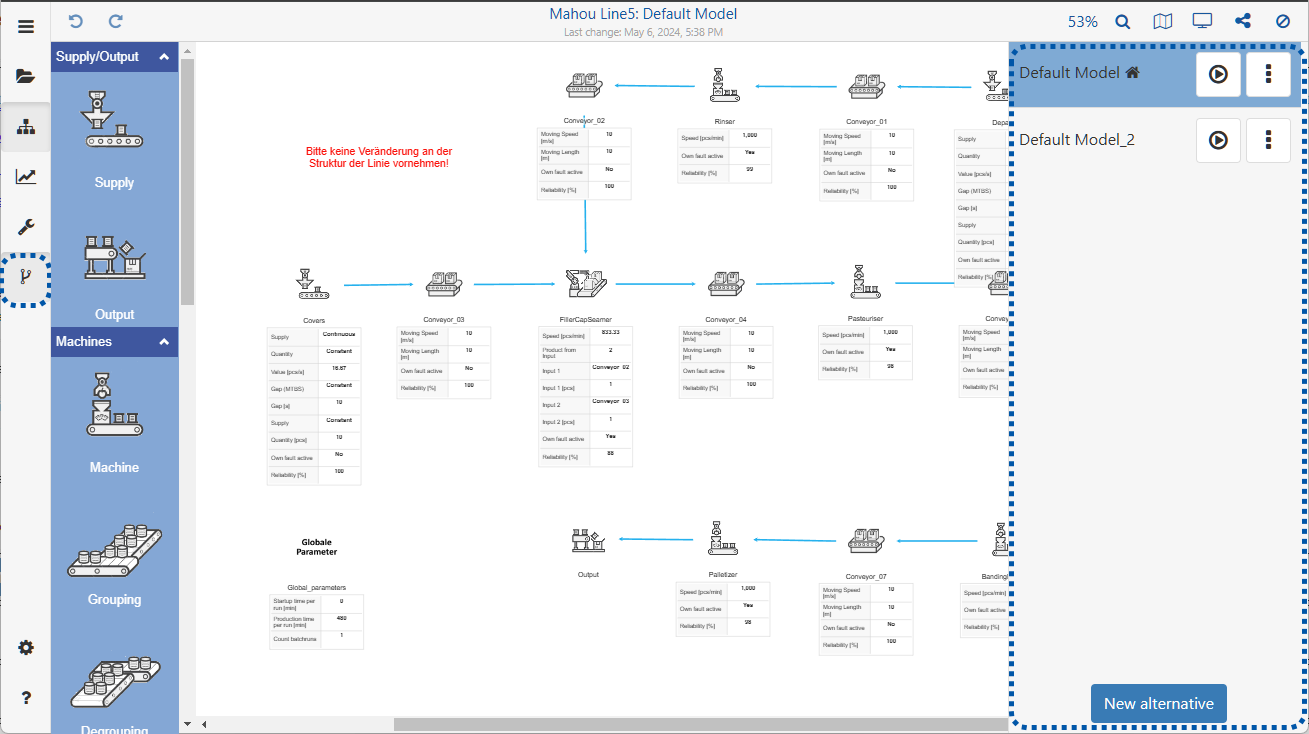
Figure 1 - Alternatives side bar
The following table explains how the buttons in the Alternatives window work:
Button |
Description |
|
Opens a new window in which you can choose between “Copy active alternative” and “Create empty alternative” (see Figure 2). |
|
Opens an information dialog for starting and checking simulation runs (details on the simulation runs can be found in chapter Start and control simulation runs) |
|
Shows the status of the simulation run of the active alternative |
|
Access to options Edit, Duplicate, Print, Save as image/SVG and Delete |



To complete the creation of a new alternative, click the Create button (see figure 2).
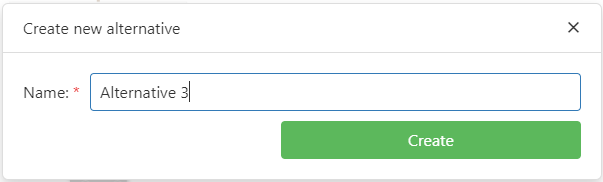
Figure 2 - Create an alternative
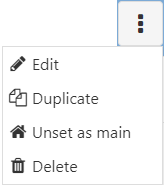
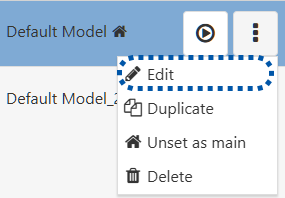
To edit an alternative, first select the desired alternative and then click on the Edit button in the options dialog (see Figure 3).
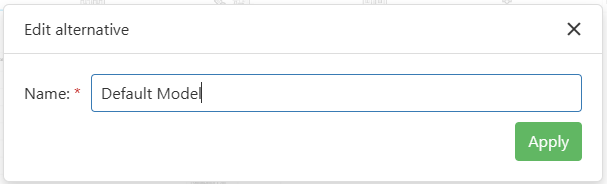
The dialog shown in Figure 4 will appear, where a new name for the alternative can be entered and confirmed by clicking on the Apply button.
Figure 3 - Edit alternatives |
Figure 4 - Apply changes |
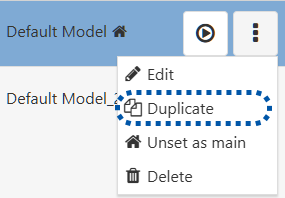
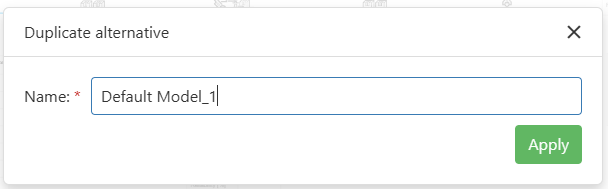
Using the context menu of simulations, the current modeling can be duplicated. A "_1" is appended to the name of the original (see figure 5 and 6). The duplicate is added to the list below the original.
Figure 5 - Duplicate an alternative |
Figure 6 - Duplicate an alternative |
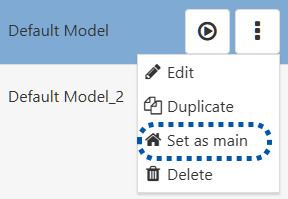
By clicking, the selected alternative can be selected as a "main" alternative, which serves as the basis for the comparison of parameter values.
In the other alternatives, each parameter value is then compared with the corresponding parameter value from the main alternative.
If at least one parameter of an object has a different value than in the main model, an icon is displayed above the object to indicate the deviation.
In addition, an indicator is displayed in the parameter sidebar for each deviating parameter and a reset function is offered (see project settings section 1.5).
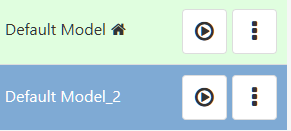
As soon as an alternative has been set as main, this is indicated in the sidebar by an icon and a colored background (cf. Figure 8a).
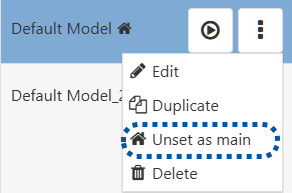
The setting can also be removed in the same way (see Figure 8b). Only one alternative of a project can be set as a main alternative.
Figure 7 - Set main alternative |
Figure 8a - Main set |
Figure 8b - Unset main |
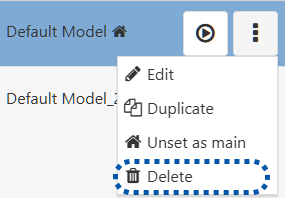
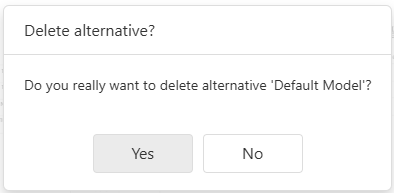
To delete an alternative, first select the desired alternative and then click the Delete button in the options dialog (see Figure 9). A message will appear (see Figure 10). A click on Yes completes the deletion process.
Figure 9 - Delete button |
Figure 10 - Delete dialog |
© SimPlan AG - Hanau District Court, Commercial Register (Part B) 6845 - info@simplan.de - www.simplan.de/en